Your Macs, linked by a cable
Plug a Thunderbolt 3, Thunderbolt 4 or USB4 cable between two Macs: the other Mac's disks appear in the Finder, automatically, at the speed of the cable. A wired, peer‑to‑peer Mac‑to‑Mac connection — no Wi‑Fi, no cloud, no external drive.
Download on the Mac App Store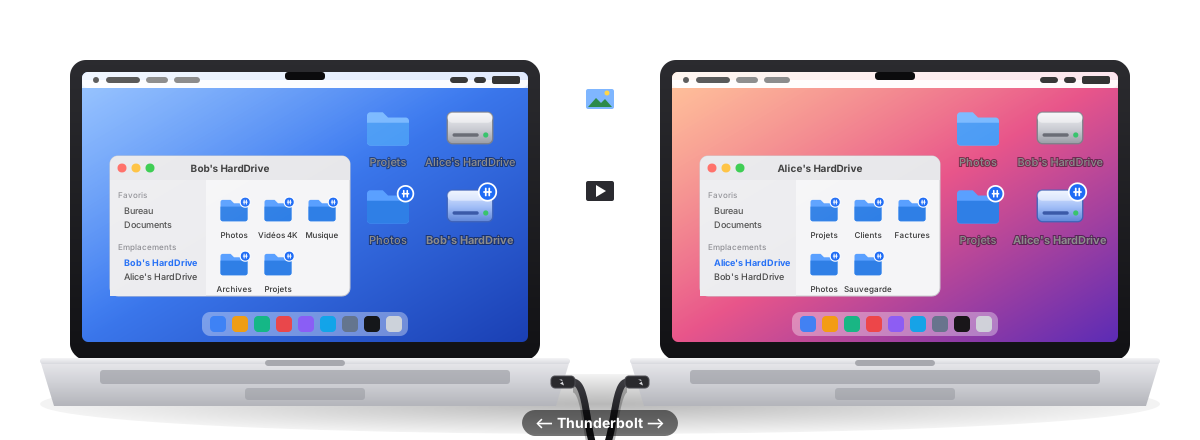
Why Mac2Mac
Moving gigabytes between two Macs shouldn't depend on Wi‑Fi, AirDrop, a USB stick or the cloud. A single cable does it faster, privately and reliably.
Automatic
Cable in: the disks appear. Cable out: they are unmounted cleanly. Nothing to configure, nothing to click — Mac2Mac watches the Thunderbolt link for you.
At the speed of the cable
Data travels over the Thunderbolt / USB4 link (up to 10–40 Gbit/s), never over Wi‑Fi. The other Mac's startup disk and external drives are mounted as they are, in the Finder.
Peer‑to‑peer, private
A direct wired connection between your Macs. No account, no server, no data collection: Mac2Mac relies on macOS File Sharing and your keychain.
Discreet
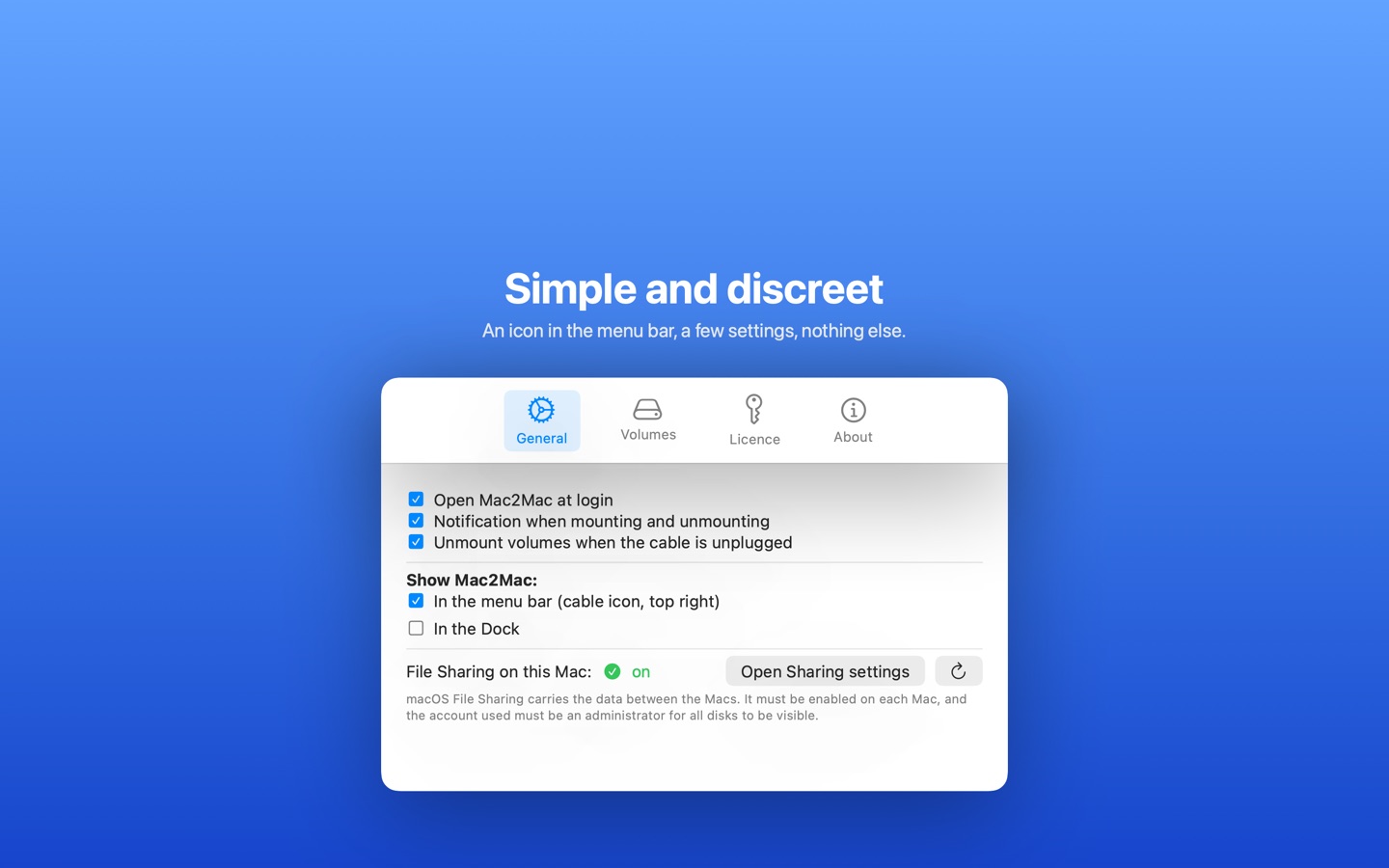
An icon in the menu bar (or in the Dock, or none — your choice), a notification when a disk mounts. That's all.
Choose what to mount
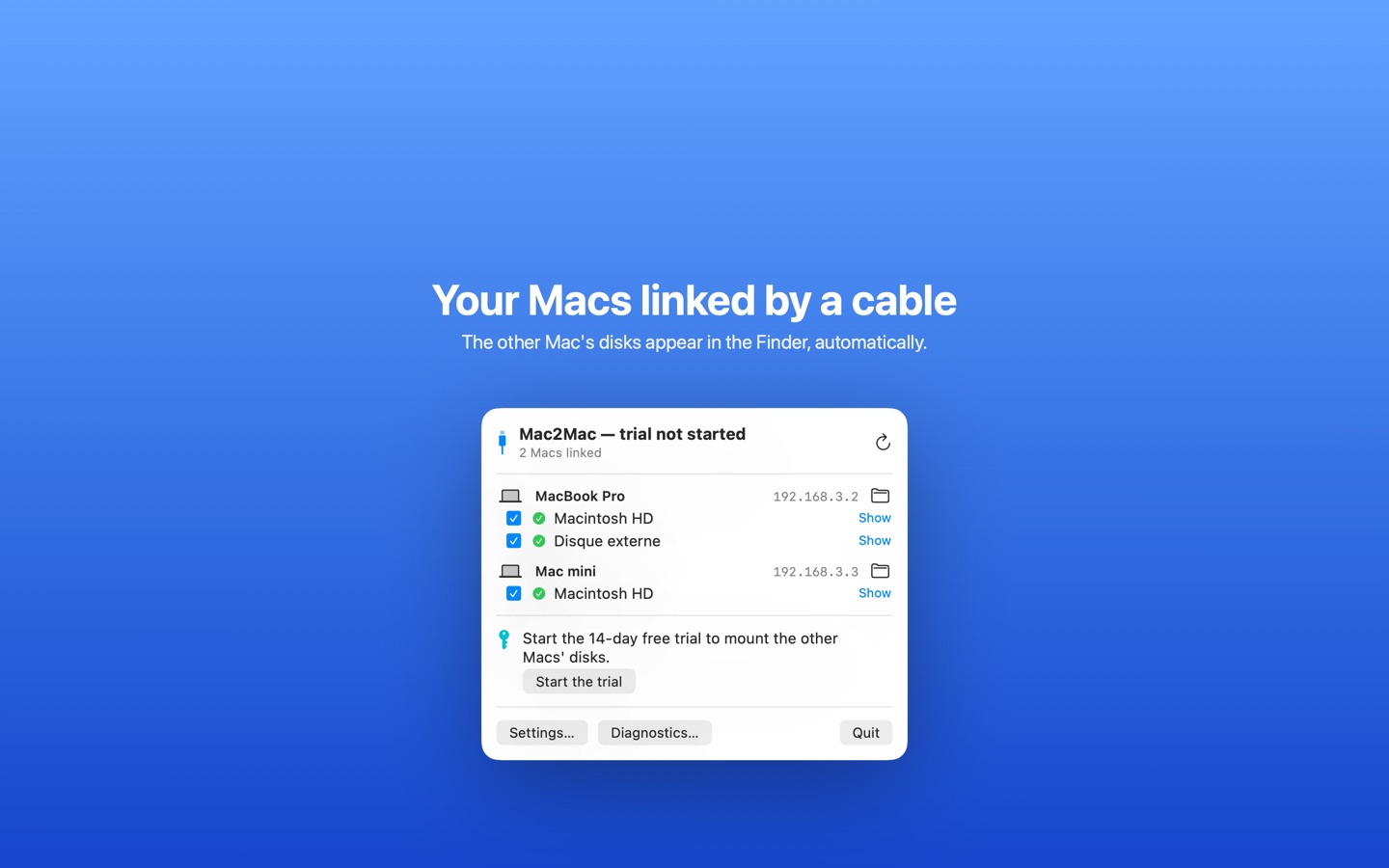
Tick, Mac by Mac, which volumes to mount automatically — or pick them in the Finder's own volume picker.
Two Macs or a whole chain
Mac2Mac links two Macs. Mac2+Mac daisy‑chains several Macs: every Mac sees the disks of all the others.
How it works
Three steps, the first time only. Afterwards, it's plug and play.
Install Mac2Mac on each Mac
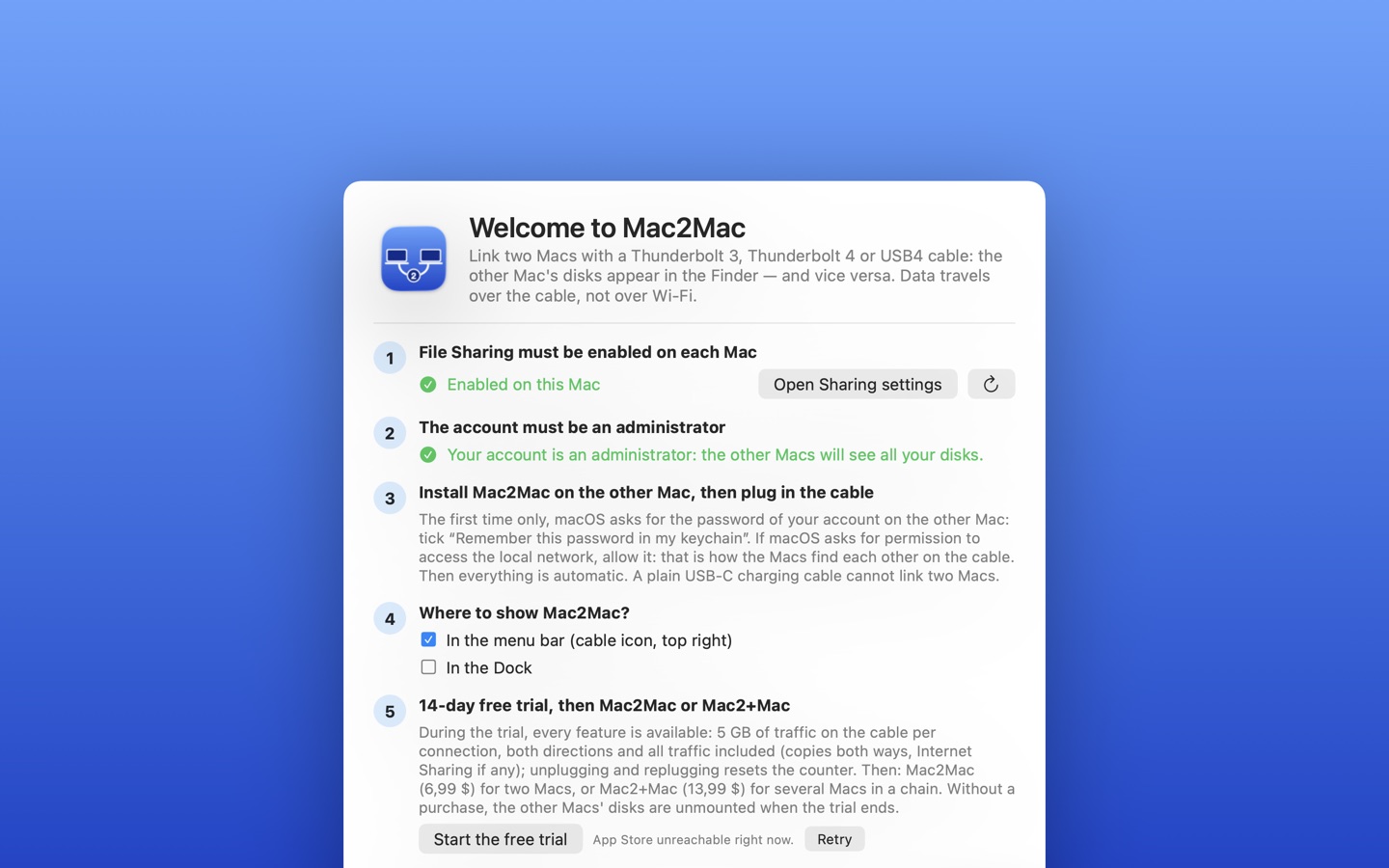
Turn on macOS File Sharing — Mac2Mac guides you and checks everything (sharing, administrator account, open at login).
Plug in the cable
Thunderbolt 3, Thunderbolt 4 or USB4. macOS creates a Thunderbolt Bridge network between the two Macs; Mac2Mac finds the other Mac on it instantly. (A plain USB‑C charging cable does not link two Macs.)
Enter your password, once
macOS asks for the password of your account on the other Mac; tick “Remember in my keychain”. From then on, everything is automatic — every time you plug the cable in.
Screenshots
Choose, Mac by Mac, which volumes to mount.
Made for
Whenever two Macs need to exchange a lot of data — quickly, privately, without the network.
Video editors & photographers
Move 4K/8K footage, RAW libraries and Final Cut or Lightroom projects from a MacBook to a Mac Studio without copying to an external SSD first.
Migrating to a new Mac
Copy your files to a new Mac over the cable, at full speed, and keep using both machines. A modern alternative to Target Disk Mode on Apple silicon.
Studios and workshops
Chain several Macs with Mac2+Mac: each workstation sees the others' disks in the Finder — a wired peer‑to‑peer network in seconds.
Backups and archives
Mount the other Mac's disk and back it up with Time Machine, rsync or your favourite tool, over a link that is 10 to 50 times faster than Wi‑Fi.
Sharing a big library
Photos, music, samples, virtual machines, datasets: use them directly from the other Mac's disk instead of duplicating them.
Offline or locked‑down networks
No router, no Wi‑Fi, no internet needed. Data never leaves the cable — ideal for confidential work and on‑site jobs.
Cable vs. everything else
How Mac2Mac compares with the usual ways of moving files between two Macs.
| Mac2Mac (cable) | AirDrop / Wi‑Fi | External SSD | Target Disk Mode | Migration Assistant | |
|---|---|---|---|---|---|
| Speed | ✓ Thunderbolt / USB4 (10–40 Gbit/s) | ✗ Wi‑Fi speed, drops on large files | ~ Two copies (write, then read) | ✓ Cable speed | ~ One‑off, slow to prepare |
| Works both ways | ✓ Each Mac sees the other | ~ One file at a time | ✗ Move the drive back and forth | ✗ One Mac is a passive disk | ✗ One‑way, one time |
| Disks in the Finder | ✓ Mounted automatically | ✗ No | ✓ Yes | ✓ Yes (Intel), limited on Apple silicon | ✗ No |
| Keep using both Macs | ✓ Yes | ✓ Yes | ✓ Yes | ✗ No (target Mac is unusable) | ✗ No |
| Private, offline | ✓ Never leaves the cable | ~ Local network required | ✓ Yes | ✓ Yes | ✓ Yes |
| Setup | ✓ Once, then automatic | ~ Every time | ~ Every time | ✗ Reboot the Mac | ✗ Long, one time |
Target Disk Mode is limited to Share Disk in macOS Recovery on Apple silicon Macs. Mac2Mac gives you the same wired, direct disk access without rebooting either Mac.
Pricing
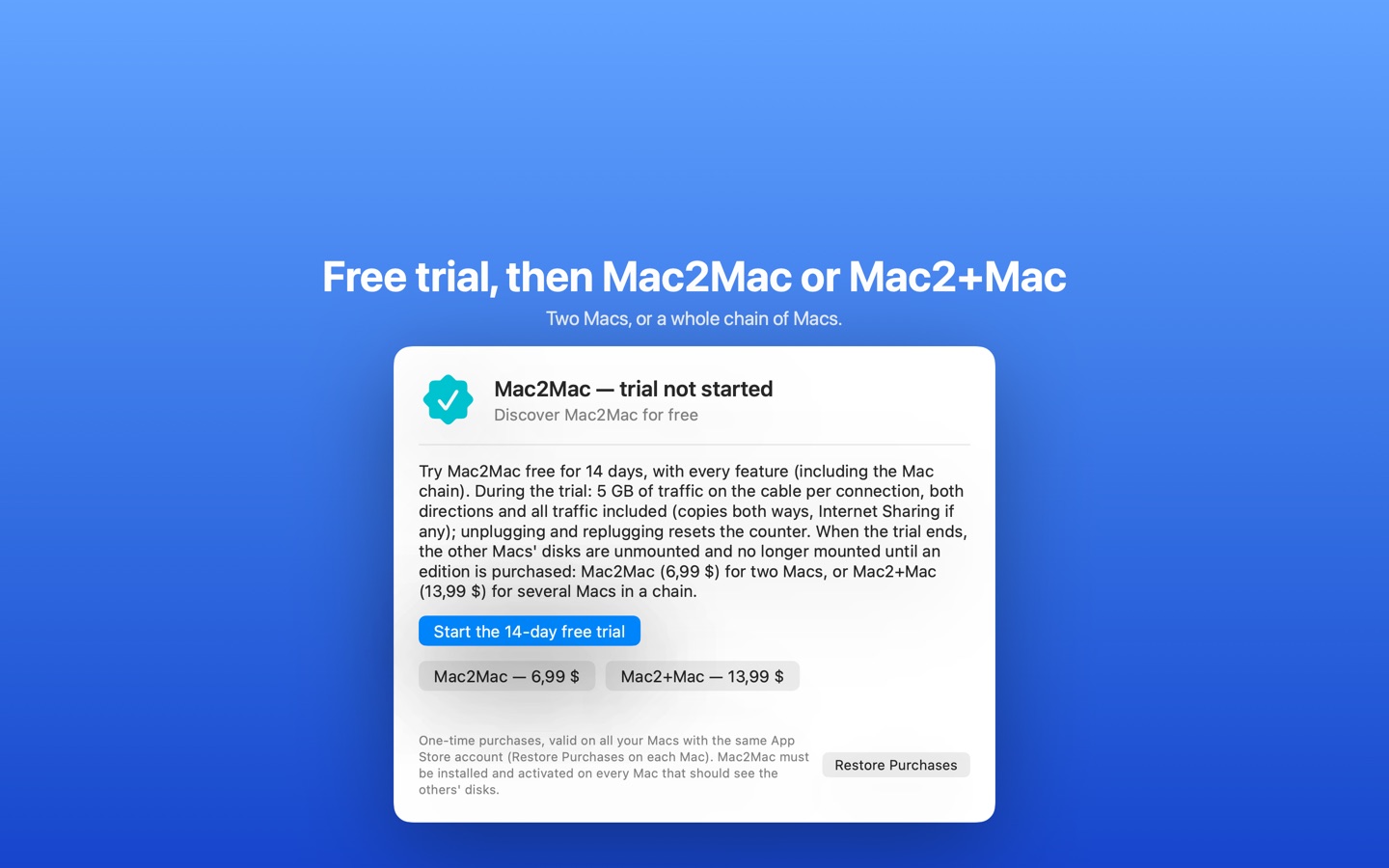
A full‑featured free trial, then a one‑time purchase — no subscription, no account.
Trial
14 days, every feature
- Mac chain included
- 5 GB of transfer per connection
- Unplug and replug to reset the counter
Mac2Mac
Two Macs linked by a cable
- Automatic mounting
- Unlimited transfer
- One‑time purchase, all your Macs
Mac2+Mac
Several Macs in a chain
- Every Mac sees all the others' disks
- Macs joining or leaving the chain are detected
- Upgrade from Mac2Mac for the difference
Prices in US dollars; the App Store shows the equivalent in your country's currency. Purchases are valid on all your Macs with the same App Store account.
Compatibility
Mac2Mac (Mac App Store): macOS 13 Ventura or later, on any Mac with Thunderbolt / USB4 ports — every Apple silicon Mac (M1, M2, M3, M4 and later: MacBook Air, MacBook Pro, iMac, Mac mini, Mac Studio, Mac Pro) and Intel Macs with Thunderbolt 3 (USB‑C) since 2016. Use a Thunderbolt 3, Thunderbolt 4 or USB4 cable — the one that came with a Thunderbolt display or drive works; a plain USB‑C charging cable does not.
Older Macs (macOS 10.13 High Sierra to macOS 12, Thunderbolt 1 or 2 with the Mini DisplayPort‑shaped connector): a lightweight “service” version without user interface is available on request. It sees the recent Macs running the app, and vice versa. A Thunderbolt 3 ⇄ Thunderbolt 2 adapter is needed to link an old Mac to a recent one.
Mac2Mac uses standard macOS technologies only — the Thunderbolt Bridge network interface (IP over Thunderbolt), Bonjour discovery and SMB File Sharing — so the disks behave exactly like any network volume in the Finder, Terminal and every app.
Frequently asked questions
Everything people ask before linking two Macs with a cable.
Can you connect two Macs with a USB‑C cable and transfer files?
Yes — provided the cable is Thunderbolt 3, Thunderbolt 4 or USB4 and both Macs have Thunderbolt / USB4 ports. macOS then creates a “Thunderbolt Bridge” network between them, and Mac2Mac mounts the other Mac's disks in the Finder automatically. A basic USB‑C charging cable (USB 2.0) cannot link two Macs.
How fast is a Mac‑to‑Mac transfer over Thunderbolt?
Thunderbolt 3/4 and USB4 links run at 10 to 40 Gbit/s, i.e. many times faster than Wi‑Fi 6 or Gigabit Ethernet. In practice the disks are the limit: copying from SSD to SSD, you can expect well over 1 GB per second between two recent Macs.
Does Target Disk Mode still exist on Apple silicon Macs?
Not as it used to: on M1/M2/M3/M4 Macs it has been replaced by “Share Disk” in macOS Recovery, which requires rebooting the Mac and makes it unusable meanwhile. Mac2Mac gives you the same direct wired access to the other Mac's disks while both Macs stay in use.
Does it work without Wi‑Fi or internet?
Yes. Mac2Mac only uses the cable: no router, no Wi‑Fi, no internet connection and no cloud account are needed. Discovery (Bonjour) and data (SMB) stay on the Thunderbolt Bridge link.
Is Mac2Mac a peer‑to‑peer connection?
Yes — a direct, wired, peer‑to‑peer link between your Macs. Each Mac sees the other's disks; there is no server in between and nothing leaves the cable.
What do I need to install?
Mac2Mac on each Mac (from the Mac App Store), macOS File Sharing turned on (Mac2Mac opens the right settings for you) and an administrator account so all disks are visible. That's it.
Which cable should I buy?
Any Thunderbolt 3, Thunderbolt 4 or USB4 cable — Apple's Thunderbolt 4 Pro cable, or a certified cable from Belkin, Cable Matters, OWC, Anker and others. Look for the Thunderbolt lightning‑bolt logo or the USB4 40 Gbps marking on the connector.
Can I link three or more Macs?
Yes, with Mac2+Mac: chain the Macs from port to port (Mac A – Mac B – Mac C). Every Mac sees the disks of all the others and Macs that join or leave the chain are detected automatically.
Does it work between an Intel Mac and an Apple silicon Mac?
Yes, as long as both have Thunderbolt 3 / USB4 ports (Intel Macs from 2016 onwards) and run macOS 13 or later. Older Macs with Thunderbolt 1 / 2 can use the service version with an adapter.
Is my data sent anywhere? Do I need an account?
No. Mac2Mac has no account, no server and collects no data. Passwords are stored by macOS in your keychain. Read the privacy policy — it is short.
Why not just use AirDrop, a USB stick or the cloud?
AirDrop and Wi‑Fi are slow and unreliable for tens of gigabytes; a USB stick or SSD means copying everything twice; the cloud means uploading your data and paying for storage. A cable is faster than all of them, free to use and private.
What is included in the free trial?
Every feature — including the Mac chain — for 14 days, with 5 GB of transfer per connection (unplug and replug the cable to reset the counter). After the trial, Mac2Mac and Mac2+Mac are one‑time purchases, valid on all your Macs.
Also known as…
Whatever you call it, Mac2Mac is the simplest way to do it:
- Mac to Mac file transfer
- Transfer files between two Macs with a cable
- Thunderbolt Bridge file sharing
- IP over Thunderbolt
- USB‑C Mac to Mac
- USB4 Mac transfer
- Wired transfer between Macs
- Peer‑to‑peer Mac connection
- Direct Mac to Mac connection
- Mount a Mac's disk on another Mac
- Share a Mac hard drive over a cable
- Target Disk Mode alternative for Apple silicon
- Migrate a Mac without Wi‑Fi
- Daisy‑chain Macs
- Fast file transfer between MacBook and Mac Studio
- SMB over Thunderbolt
- Mac cluster file access